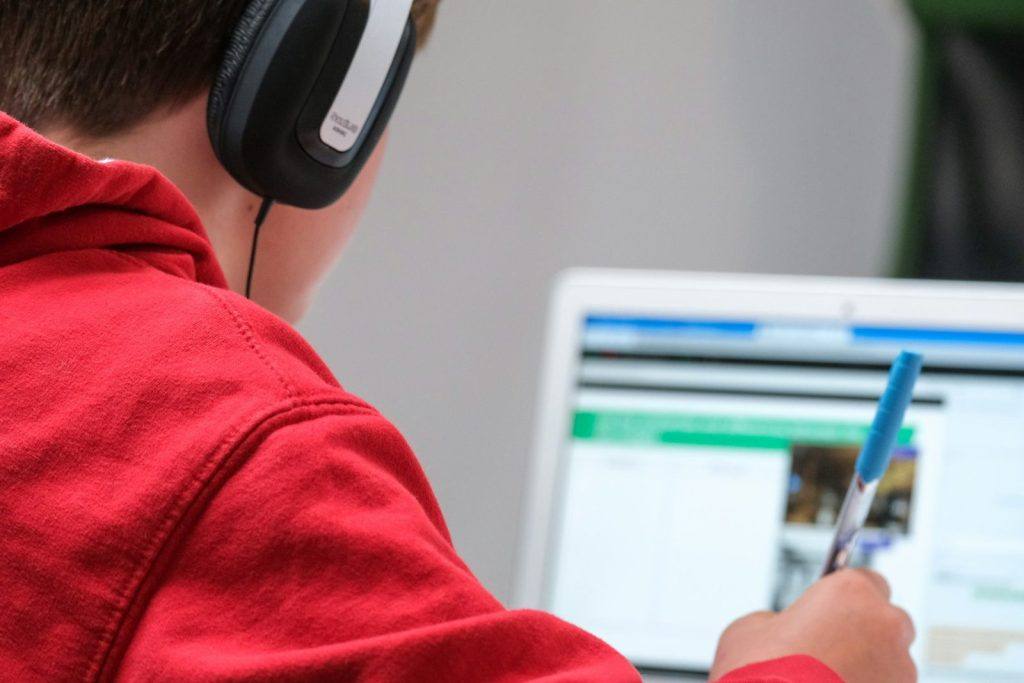
Zoom Workplace is the best virtual classroom software for most schools, tutors, and trainers in 2026, and BigBlueButton is the best pick for small teams on a tight budget because the software is free. Zoom wins on familiarity: almost every student can join without help.
The right choice depends on the systems you already pay for. Google Classroom schools get the most from Google Meet, and Microsoft 365 schools from Teams for Education. Institutions that want real teaching controls on top of Zoom or Teams should look at Class, and trainers who run the same course repeatedly fit Adobe Connect.
Before you buy, check your current licenses. Many schools already own a capable video tool through Google or Microsoft and only need a paid upgrade for recording or attendance.
Our top pick
Zoom Workplace
The video platform students already know, with the teaching basics built in.
Quick picks
Best overall
Best for institutions
Best for Google schools
Best for Microsoft schools
Best free option
How we ranked these tools
We scored each platform on five criteria: fit for live teaching, depth of classroom features such as breakout rooms and whiteboards, pricing and value, ease of use for students and instructors, and support. We based the scores on vendor documentation, published pricing, and public user reviews. Prices reflect published rates as of October 2026, so confirm the current price with each vendor.
The 6 best virtual classroom software platforms
1. Zoom Workplace
Best for most schools, tutors, and trainers
Our rating4.7 / 5
Starting price$14.16 / user / month
Free planYes (40-minute meetings)
Zoom Workplace is the video platform most students and parents already know, which removes a lot of first-day friction. Breakout rooms, polls, a shared whiteboard, and cloud recording cover the core of live teaching, and LMS integrations let instructors schedule sessions from inside a course. The free Basic plan caps meetings at 40 minutes, so regular classes need Pro, which Zoom priced at $14.16 per user per month on annual billing after a 2026 increase. It is a meeting tool first, so grading and attendance live elsewhere.
Pros
- Familiar to students, parents, and staff
- Breakout rooms, polls, and whiteboard built in
- Free plan for short sessions and tutoring trials
Cons
- Free meetings end at 40 minutes
- Pro price rose in 2026
- Few teaching-specific controls without add-ons
Key features
- Breakout rooms
- Polls and reactions
- Cloud recording
- LMS scheduling integrations
2. Class
Best for institutions that want teaching controls on Zoom or Teams
Our rating4.6 / 5
Starting priceCustom pricing
Free planNo
Class, formerly ClassEDU, sits on top of Zoom and Microsoft Teams and turns a meeting into a classroom. Instructors get teaching controls, engagement tools, and session analytics that a standard meeting app lacks. The company also bought Blackboard Collaborate in 2022 and now sells it as Class for Web, a browser-based option. Pricing is quote-only and set by contract, usually by student count. The Zoom and Teams versions still require your existing Zoom or Teams licenses, so budget for both.
Pros
- Purpose-built teaching controls and analytics
- Runs inside Zoom or Teams people already use
- Browser option through Class for Web
Cons
- No published pricing
- Needs Zoom or Teams licenses on top
Key features
- Instructor classroom controls
- Engagement tools
- Session analytics
- Zoom and Teams overlays
3. Google Meet
Best for schools on Google Classroom
Our rating4.5 / 5
Starting price$60 / user / year
Free planYes (Education Fundamentals)
Google Meet comes with Google Workspace for Education, so a school already using Google Classroom can launch a class call from the course stream. Education Fundamentals is free for qualifying institutions and covers basic meetings. Advanced Meet features, such as recording and attendance tracking, sit in paid tiers like the Teaching and Learning add-on at a suggested $60 per user per year, or Education Plus. The basic tier is thin for daily live instruction, so check which features each teacher actually needs before you license everyone.
Pros
- Free entry tier for qualifying schools
- Tight link with Google Classroom
- Nothing new for students to install
Cons
- Key teaching features need a paid tier
- Fewer classroom controls than dedicated tools
Key features
- Classroom integration
- Breakout rooms
- Polls and Q&A
- Attendance tracking
4. Microsoft Teams for Education
Best for schools on Microsoft 365
Our rating4.4 / 5
Starting price$2.50 / user / month
Free planYes (Office 365 A1)
Microsoft Teams for Education pairs video classes with class teams, assignments, and OneNote Class Notebook, so the meeting and the coursework sit in one app. Microsoft donates Office 365 A1 to eligible schools at no cost, and paid A3 licenses start at $2.50 per user per month. It suits districts and colleges that already run on Microsoft accounts. Teams can feel heavy on older devices, and teachers who only want a quick video room may find it more than they need.
Pros
- Free A1 license for eligible schools
- Assignments and Class Notebook in the same app
- Fits existing Microsoft identity and security
Cons
- Heavier than a simple meeting app
- Steeper learning curve for new teachers
Key features
- Class teams
- Assignments and grading
- Breakout rooms
- Attendance reports
5. Adobe Connect
Best for persistent, designed training rooms
Our rating4.3 / 5
Starting price$190 / host / year
Free planNo
Adobe Connect lets you build a classroom once and keep it: layouts, files, and pods stay in place between sessions. That suits corporate trainers and universities that run the same course many times. Standard costs $190 per host per year for 100-seat rooms, Premium is $290 with the Pro Pack included, and Enterprise is $390 with 300-seat rooms and an education discount at 50 or more licenses. The interface looks older than Zoom, and the Training Pro Pack costs $600 a year on Standard.
Pros
- Rooms keep their layout between sessions
- Published, per-host annual pricing
- Education discount on Enterprise
Cons
- Interface feels dated
- Training features cost extra on Standard
- No free trial listed on the pricing page
Key features
- Persistent rooms
- Custom layouts and pods
- Breakout rooms
- Training Pro Pack
6. BigBlueButton
Best free, open-source option
Our rating4.1 / 5
Starting priceFree (self-hosted)
Free planYes (open source)
BigBlueButton is an open-source virtual classroom built for teaching rather than business meetings. It includes a multi-user whiteboard, shared notes, polls, and breakout rooms, and it plugs into learning platforms such as Moodle. The software is free, which makes it the lowest-cost option on this list for a school with IT staff. The catch is hosting: you either run your own servers or pay a hosting partner, and that cost and upkeep land on you.
Pros
- Free, open-source software
- Teaching tools such as whiteboard and shared notes
- Connects to common LMS platforms
Cons
- You host and maintain it, or pay a partner
- No vendor support unless you buy hosting
Key features
- Multi-user whiteboard
- Shared notes
- Polls
- Breakout rooms
Compare the top virtual classroom platforms
| Tool | Best for | Starting price | Free plan | Rating |
|---|---|---|---|---|
| Zoom Workplace | Most schools, tutors, and trainers | $14.16 / user / month | Yes (40-minute meetings) | 4.7 |
| Class | Institutions that want teaching controls on Zoom or Teams | Custom pricing | No | 4.6 |
| Google Meet | Schools on Google Classroom | $60 / user / year | Yes (Education Fundamentals) | 4.5 |
| Microsoft Teams for Education | Schools on Microsoft 365 | $2.50 / user / month | Yes (Office 365 A1) | 4.4 |
| Adobe Connect | Persistent, designed training rooms | $190 / host / year | No | 4.3 |
| BigBlueButton | Best free, open-source option | Free (self-hosted) | Yes (open source) | 4.1 |
How to choose virtual classroom software
Start with the accounts students already have
If every student signs in with Google or Microsoft, Meet or Teams avoids a new login and a new app. A separate platform earns its place only when it adds teaching features those tools lack.
List the classroom features you use every week
Breakout rooms, polls, recording, and attendance reports matter more than long feature lists. Confirm each one is in the tier you plan to buy, since several vendors keep recording and attendance in paid plans.
Test on your weakest devices
Run a trial class on the oldest Chromebook or laptop your students use, on a home internet connection. A platform that stutters there will frustrate the students who most need a stable class.
Frequently asked questions
What is virtual classroom software?
Virtual classroom software runs live online classes. It combines video with teaching tools such as a shared whiteboard, breakout rooms, polls, chat, and recording, so an instructor can teach, group students, and check understanding in real time instead of only presenting slides.
Can you run a virtual classroom for free?
Yes. Zoom’s free plan handles meetings up to 40 minutes, Google Meet comes with free Education Fundamentals for qualifying schools, and Office 365 A1 includes Teams at no cost. BigBlueButton is free open-source software, though you pay for hosting. Free tiers work for tutoring and short sessions, while full-day teaching usually needs a paid plan.
Is Zoom or Google Meet better for teaching?
Zoom is better for most standalone teaching because breakout rooms, polls, and recording are mature and familiar. Google Meet is the better choice for schools on Google Classroom, since classes launch from the course and students use the accounts they already have.
Do you need an LMS as well as a virtual classroom?
Usually, yes. A virtual classroom handles live sessions, while an LMS stores coursework, assignments, and grades. Most platforms here integrate with common LMS tools, and Teams for Education covers some LMS tasks on its own. Schedule live sessions from the LMS so links, recordings, and attendance stay with the course.
Keep reading
Buyer’s guide
How to Choose Virtual Classroom Software in 2026
A practical guide to virtual classroom software: licenses you own, teaching features, LMS links, privacy, full cost and a pilot with real students.
Comparison
Zoom Workplace vs Class: Which Is Better in 2026?
Zoom Workplace suits tutors and schools that need a familiar video room, while Class suits institutions that want teaching controls on Zoom or Teams.
Related lists
Education
Best Learning Management Systems in 2026
Platforms that organize courses, assignments, and grades.